
Close Menu
WordPress ExpertsWordPress Experts
    Facebook
    WordPress ExpertsWordPress Experts
    • Technology
      • AI & Machine Learning
      • Cloud Computing
      • Cybersecurity
      • Software Reviews
    • CRM
      • Freshworks
      • HubSpot
      • Microsoft Dynamics
      • Open Source CRM
      • Salesforce
      • Zoho
    • Programming
      • WordPress
        • WordPress Errors
        • WordPress Themes
        • WordPress Performance
        • WordPress Plugins
        • WordPress SEO
          • Google AdSense
        • Vulnerabilities
        • Responsive WordPress Themes
        • WooCommerce
          • WooCommerce Tips
        • WordPress Security
          • Wordfence
    • Web Development
    • Web Hosting
    • Digital Marketing
    • Contacts
      • Write for Us
      • Fix Hacked WordPress Site
      • Web Design Services
      • Page Builder Services
      • Woocommerce Services
      • WordPress Forms Services
      • WordPress LMS Development Services
      • WordPress Maintenance & Support Services
    Facebook
    WordPress ExpertsWordPress Experts
    Home»Programming»WordPress»WordPress Errors»How to Fix Common Image Issues in WordPress
    WordPress Errors

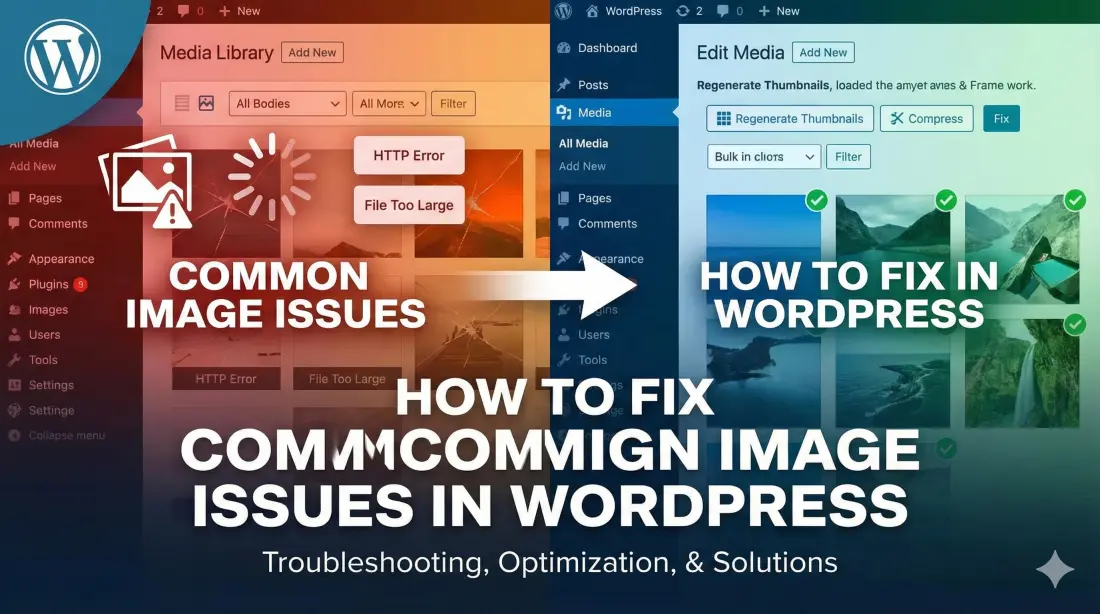
    How to Fix Common Image Issues in WordPress

    WP Experts TeamBy WP Experts TeamDecember 19, 2025Updated:December 19, 2025No Comments3 Mins Read
    Share Facebook Twitter LinkedIn Reddit Telegram Email WhatsApp
    Fix Common Image Issues in WordPress
    Share
    Facebook Twitter LinkedIn Email Telegram WhatsApp

    WordPress is a great tool for building websites. It is powerful and easy to use. This makes it perfect for bloggers and business owners. However, even the best systems have problems. One of the most annoying problems involves images.

    Images make your website look good. They help break up long text and keep readers interested. But when they break or load slowly, they can hurt your site. They can make your site look unprofessional.

    In this guide, we will look at common image errors and how to fix them.

    1. Images Loading Slowly

    Do your pictures take a long time to show up? This is a major problem. If your site is slow, visitors will leave. This also hurts your ranking on Google.

    This usually happens because the image files are too big. A high-quality photo from your camera might be 5MB. This is far too large for a website.

    How to Fix It: You need to compress your images. This makes the file size smaller without changing how the image looks.

    • Use a Plugin: You can install a plugin like Smush. It automatically squeezes your images when you upload them.

    • Use an Online Tool: Before you upload, run your photos through a site like TinyPNG.

    2. HTTP Error When Uploading

    Sometimes, when you try to upload a picture, you see a red error message that says “HTTP Error.” This is vague and frustrating. It does not tell you exactly what is wrong.

    How to Fix It:

    • Refresh the Page: Sometimes, your browser just lost connection. Refresh and try again.

    • Resize the File: If the image is huge (in pixels), WordPress might run out of memory trying to process it. Make the dimensions smaller on your computer first.

    • Check File Name: Avoid using special characters like apostrophes or symbols in your file name. Rename my-photo's.jpg to my-photos.jpg.

    3. Image Resizing and Cropping Issues

    Have you ever uploaded a photo, but it looks squashed or cut off on your page? This happens when your theme forces an image into a specific shape.

    How to Fix It: You can use the built-in editor in WordPress.

    1. Go to your Media Library.

    2. Click on the image you want to fix.

    3. Click the Edit Image button below the photo.

    4. Here you can crop, rotate, or resize the image to fit your needs.

    If you are not comfortable doing this yourself, you might need help with troubleshooting WordPress errors. Sometimes the issue is with the code in your theme.

    4. Missing Alt Text

    This is not a visual error, but it is an SEO error. “Alt text” is a short description of your image. Search engines like Google cannot “see” pictures. They read the Alt text to understand what the image shows.

    How to Fix It:

    • Click on any image in your library.

    • Look for the box labeled Alternative Text.

    • Type a simple description, like “A red car driving on a road.”

    • This helps Google rank your page and helps blind users understand your content.

    Conclusion

    Image issues are common, but they are easy to fix. You do not need to be a coding expert to handle them. By keeping your images small and naming them correctly, you can speed up your site.

    If you face errors that you cannot fix, do not panic. Regular maintenance can prevent these headaches. Consider hiring a team for professional WordPress site maintenance. They can handle updates and backups so you can focus on your business.

    Fixing your images today will make your site faster and your visitors happier.

    Share. Facebook Twitter LinkedIn Email Telegram WhatsApp
    Previous ArticleHow to Fix the 500 Internal Server Error on Your WordPress Website
    Next Article Beginner’s Guide to Troubleshooting WordPress Errors
    WP Experts Team
    • Website

    As a global digital solutions partner, we empower businesses with integrated technology platforms. We specialize in crafting high-performance WordPress websites—from custom design and SEO-optimized content to robust e-commerce. Furthermore, we unlock growth by implementing and optimizing Salesforce, streamlining your CRM, and automating sales and service processes. From your digital storefront to your customer relationships, we provide end-to-end solutions to achieve your online goals.

    Related Posts

    WordPress Errors

    The Ultimate Guide to Common WordPress Errors (and How to Fix Them)

    January 15, 2026
    WordPress Errors

    How to Fix the Internal Server Error in WordPress (The 2026 Guide)

    January 15, 2026
    WordPress Errors

    Fix “There Has Been a Critical Error on This Website” (The 2026 Guide)

    January 13, 2026
    Add A Comment

    Comments are closed.

    fix hacked wordpress websites and remove malware
    fix wordpress issues
    create a wordpress website with elementor
    fix woocommerce issues and customize theme
    migrate or clone wordpress site to new host or domain
    Top Articles

    Best Clone App Development Companies to Multi-Service (Super) Apps

    January 22, 2026

    How to Sell Personalized Products in WooCommerce Using File Uploads

    January 22, 2026

    The Ultimate Guide to Common WordPress Errors (and How to Fix Them)

    January 15, 2026

    How to Fix the Internal Server Error in WordPress (The 2026 Guide)

    January 15, 2026
    Facebook
    • Client Experiences
    • WordPress Forms Services
    • Page Builder Services
    • Woocommerce Services
    • WordPress Migration Services
    • WordPress Maintenance & Support Services
    • Fix Hacked WordPress Site
    • WordPress LMS Development Services
    • Web Design Services
    © 2026 WordPress Experts All rights reserved

    Type above and press Enter to search. Press Esc to cancel.