


You are working on your website. Maybe you are installing a new theme or checking your plugins. Suddenly, the screen goes white.
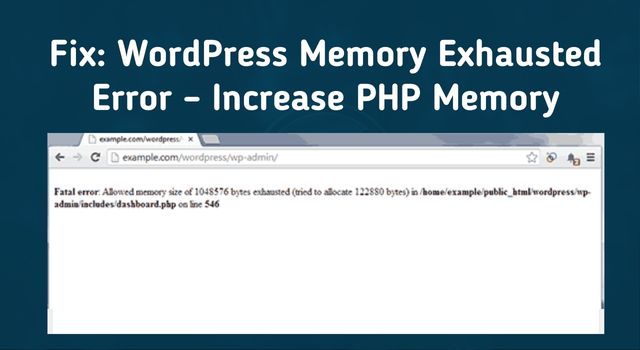
You see a scary error message that looks like this:
Fatal error: Allowed memory size of 67108864 bytes exhausted (tried to allocate 123456 bytes)...
This is called the WordPress Memory Exhausted Error.
It looks technical, but do not worry. It does not mean your website is broken forever. It just means your website ran out of fuel.
Think of your website like a smartphone. If you open too many apps at once, the phone gets slow or crashes because it ran out of Memory (RAM). Your WordPress site works the same way. It needs memory to run. If a plugin or theme asks for more memory than your server allows, the site crashes to protect itself.
In this guide, we will show you exactly how to fix this. We will show you how to give your website more power so it can run smoothly again.
Why Did This Happen?
Before we fix it, it helps to know why it broke.
Your Limit is Too Low: By default, WordPress sets a memory limit of 64MB. In 2026, this is too small. Modern tools like Elementor or WooCommerce need at least 256MB to work well.
You Have a “Heavy” Plugin: Some plugins are very big. They use a lot of power to run. If you have many big plugins running at the same time, they eat up all the memory.
Your Hosting Plan: Cheap hosting plans often have strict limits. They might block you from using more power.
Now, let’s look at the 4 easy ways to increase your limit.
Method 1: Edit the wp-config.php File (The Best Way)
This is the most common fix. It works for 90% of websites.
We are going to add a simple line of code to your site’s settings file. This code tells WordPress, “You are allowed to use more memory.”
Connect to Your Site: You need to access your site’s files. You can use an FTP tool (like FileZilla) or use the “File Manager” provided by your hosting company.
Find the File: Look for a file named
wp-config.php. It is located in the main folder of your website (usually calledpublic_html).Edit the File: Right-click on the file and choose “Edit.”
Add the Code: Scroll down through the code. Look for a line that says, “That’s all, stop editing! Happy publishing.” Just before that line, paste this code:
PHPdefine( 'WP_MEMORY_LIMIT', '256M' );Save the File: Click save. Now, try to reload your website.
Pro Tip for Admin Errors: Sometimes your website works for visitors, but the “Admin Dashboard” (where you log in) crashes. If this happens, you can add a second line of code to give your dashboard extra power:
define( 'WP_MAX_MEMORY_LIMIT', '512M' );Method 2: Edit the .htaccess File
If Method 1 did not work, your server might be blocking the change. We can try a different file called .htaccess. This file controls how your server behaves.
Find the File: Go back to your file manager. Look for the file named
.htaccess.Note: If you do not see it, look for a “Settings” button in your file manager and turn on “Show Hidden Files.”
Edit the File: Right-click and choose “Edit.”
Add the Code: Scroll to the very bottom of the file. Paste this line:
Apachephp_value memory_limit 256MSave and Test: Save the file and refresh your website.
Warning: If your site shows a “500 Internal Server Error” after doing this, delete the line you just added. It means your hosting company does not allow this method.
Method 3: Use Your Hosting Dashboard
In 2026, many hosting companies make this very easy. You might not need to touch any code at all.
If you use cPanel:
Log in to your hosting account (cPanel).
Look for a section called “MultiPHP INI Editor” or “Select PHP Version.”
Click on your domain name.
You will see a list of settings. Find the one called
memory_limit.Change the number to 256M.
Click Apply.
If you use Managed Hosting (like Cloudways or WP Engine): Go to your site settings in their dashboard. Look for “PHP Settings.” You can type in the new limit there.
For more details on server settings, you can check the technical documentation on PHP.net.
Method 4: Check for Bad Plugins
What if you increase the limit to 512MB and the site still crashes?
This means you have a bigger problem. You likely have a “broken” plugin. This plugin is not just using a lot of memory; it is leaking memory. It will eat up 100% of your RAM no matter how much you give it.
How to find the bad plugin:
Turn Off All Plugins: Since you cannot log in, you need to do this via FTP. Go to your
wp-contentfolder and rename thepluginsfolder toplugins_old.Check the Site: If your site comes back online, you know a plugin is the bad guy.
Test One by One: Rename the folder back to
plugins. Go inside and turn off individual plugin folders one at a time until the error stops.
For more help on finding broken plugins, read our Beginner’s Guide to Troubleshooting WordPress Errors.
Safety Warning: Do Not Go Too High
You might think, “If 256MB is good, 2000MB must be better!”
Please do not do this.
If you set the limit too high, a bad script can eat up all the memory on your entire server. This can crash your email, your database, and any other sites you have on that server.
Recommended Limits:
Standard Site: 128MB
Elementor / Divi Site: 256MB
WooCommerce Store: 512MB
Do not go higher than 512MB unless you have a very powerful server. For more on standard requirements, see the official WordPress.org Support.
Conclusion
The “Memory Exhausted” error is annoying, but it is easy to fix. It is just your website asking for a little more room to breathe.
Recap of Steps:
Try adding the code to
wp-config.php.If that fails, try the
.htaccessfile.Check your hosting dashboard for an easy switch.
If nothing works, check for a bad plugin.
Still Seeing a White Screen? If you have tried all 4 methods and your site is still broken, you might have a deeper issue with your theme or database. Do not waste days trying to guess the problem.
Contact Our WordPress Support Team today. We can log in, find the memory leak, and get your business back online quickly.
