


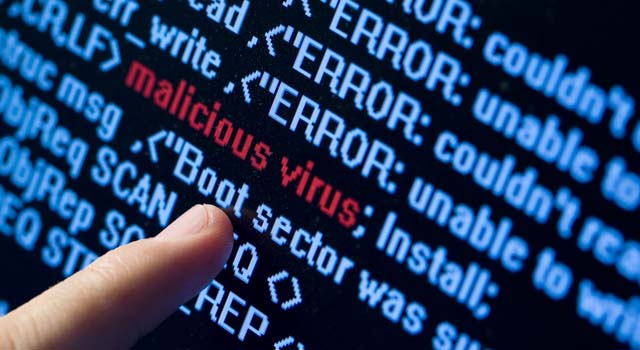
You wake up, check your website, and your heart sinks.
Maybe Google shows a big red screen saying “Deceptive Site Ahead.” Maybe your site is redirecting to a spam page. Or maybe your hosting provider just suspended your account.
Your WordPress site has been hacked.
It is a stressful situation, but don’t panic. Malware infection is common, and it is completely fixable. You don’t need to burn your site down and start over. You just need to follow a strict cleaning process.
In this guide, we will walk you through exactly how to find the malware, remove it permanently, and restore your site’s reputation.
How Do I Know If I'm Infected?
Sometimes hacks are obvious, but often they are silent. Here are the signs:
The Red Screen: Google Chrome blocks your site with a warning.
Strange Redirects: Visitors are sent to gambling or pharmaceutical sites.
New Admin Users: You see a user named “admin123” or “ghost” that you didn’t create.
Slow Speed: Your site suddenly takes 10 seconds to load because it’s mining crypto or sending spam emails.
If you see any of these, you need to act fast.
Preparation (Don't Skip This)
Before we start deleting files, we need to prepare.
Step 1: Backup (Yes, Even the Hack)
It sounds crazy to backup a hacked site, but you must do it. If you delete the wrong file while cleaning, you might break your site completely. A hacked site is better than a broken site.
Action: Use a plugin like UpdraftPlus or your hosting control panel to download a full backup of your files and database. Label it “Infected Backup.”
Step 2: Put Your Site in Maintenance Mode
You don’t want visitors getting infected while you work.
Action: Install a “Maintenance Mode” plugin. Activate it so visitors see a “We’ll be back soon” message instead of the virus.
The Cleaning Process (Step-by-Step)
We will use a combination of automated scanning and manual “Core Replacement” to ensure the virus is gone.
Step 3: Scan with a Security Plugin
Plugins are great at finding known viruses.
Install Wordfence or Gotmls (Anti-Malware Security and Brute-Force Firewall).
Run a High Sensitivity scan.
Delete or Repair any files it finds.
Note: If the plugin says a “Core File” (like
wp-config.phporindex.php) is infected, be careful. Deleting it might crash your site. We will fix these manually in the next step.
Step 4: Reinstall WordPress Core (The Nuclear Option)
Hackers love to hide backdoors in your system folders (wp-admin and wp-includes). The only way to be 100% sure they are clean is to delete them and replace them with fresh copies.
Download WordPress: Go to WordPress.org and download the latest zip file. Unzip it on your computer.
Connect via FTP: Use FileZilla to connect to your server.
Delete Old Folders: On your server, delete the
wp-adminandwp-includesfolders.IMPORTANT: Do NOT delete
wp-content. This folder holds your images and themes. If you delete it, you lose your content.IMPORTANT: Do NOT delete
wp-config.php. This connects your site to the database.
Upload New Folders: Drag the fresh
wp-adminandwp-includesfolders from your computer to your server.
Congratulations! You just replaced the “engine” of your website with a factory-new one.
Step 5: Clean the wp-content Folder
Now we need to check your themes and plugins.
Check
uploads: Go towp-content/uploads. Look for any PHP files.Rule: Image folders should only contain images (.jpg, .png). If you see a file like
image.phporbackdoor.php, delete it.
Update Everything: Go to your dashboard and update all themes and plugins. Old versions are security risks.
Remove Unused Code: Delete any theme or plugin you are not using. Hackers hide in inactive files.
Cleaning the Database
Sometimes hackers create a “Ghost Admin” account to get back in later.
Login to your Dashboard.
Go to Users > All Users.
Look for any Administrator you don’t recognize.
Delete them. (Assign their posts to your own account if asked).
Reset Passwords: Force a password reset for all remaining users.
Removing the "Google Warning"
Your site is clean, but Google doesn’t know that yet. You need to tell them.
Log in to Google Search Console.
Click on Security & Manual Actions > Security Issues.
You will see a list of infected URLs.
Click “Request Review.”
Write a note: “I have identified the malware infection. I have replaced core WordPress files, removed malicious PHP scripts from the uploads directory, and updated all plugins. The site is now clean.”
Google usually reviews these requests within 24 to 72 hours. Once approved, the red warning screen will disappear.
Future Protection (Hardening)
You don’t want to do this again next week. Let’s lock the door.
1. Disable File Editing
Hackers love the “Theme Editor” in your dashboard. Turn it off. Add this line to your wp-config.php file:
define( 'DISALLOW_FILE_EDIT', true );
2. Install a Firewall
A firewall sits between your site and the internet. It blocks hackers before they even touch your login page. We recommend the free version of Wordfence or using Cloudflare.
3. Updates are Mandatory
90% of hacks happen because a plugin was outdated. Enable auto-updates for plugins if you can, or check your site weekly.
Conclusion
Removing malware is a technical process, but it follows a logic.
Scan to find the infection.
Replace core files to kill backdoors.
Clean the database of ghost users.
Request Review from Google.
If you follow these steps, your site will be cleaner and safer than it was before the hack.
Still Stuck? If the malware keeps coming back, the hacker might have left a “Cron Job” or a hidden backdoor deep in your server. This requires expert analysis.
Contact Our Malware Removal Team today. We can deep-clean your site, patch the security hole, and get you back online fast.
